

 AI Intranet TranslationHelp & documentation
Set up and use
AI Intranet Translation.
AI Intranet Translation adds a language switcher to the header of every modern SharePoint page. Readers select a language and the text of the page they are on is translated. Original shows the page exactly as it was written.
What's in the package: one SharePoint Framework (SPFx) Application Customizer extension, deployed tenant-wide.
1. Subscribe and activate
- Open AI Intranet Translation on Microsoft Marketplace and select a plan.
- After purchase you are taken to the Tealdroid landing page. Sign in with your work account and select Activate subscription.
2. Add the app to SharePoint
- In the SharePoint admin center → More features → Apps, add AI Intranet Translation to your tenant App Catalog, or upload
ai-intranet-translation.sppkgto Apps for SharePoint. - When asked, select Enable this app and add it to all sites immediately, then Enable app.
3. Approve API access
- Open SharePoint admin center → Advanced → API access.
- Under Pending requests, select AI Translation for SharePoint – user_impersonation and choose Approve.
https://login.microsoftonline.com/<your-tenant-id>/adminconsent?client_id=8a91ed03-a9a4-4c78-b8ef-89f09f678223 and selecting Accept. Then reject the old request, add the app again and approve the new request.4. Connect your Azure resources
Open any modern SharePoint page as a Global or SharePoint Administrator and select Connect Azure in the page header. Choose one of two options:
- Creates an Azure AI Foundry resource, a chat model deployment and a Storage account for you
- Paste a short-lived ARM access token (see below)
- Enter the subscription ID, resource group, region and resource names
- Select Run Automated Provisioning
- Uses Azure resources you already have
- Azure AI Foundry endpoint, API key and chat deployment name
- Storage account name and key, and a blob container (default
page-translations) - Select Save & Test Connection
ARM access token: in the Azure portal Cloud Shell (Bash), run:
az account set --subscription "<your-subscription-id>"az account get-access-token --resource https://management.azure.com/ --query accessToken -o tsvYour account needs Contributor or Owner access to the subscription. Treat the token like a password.
5. Choose languages
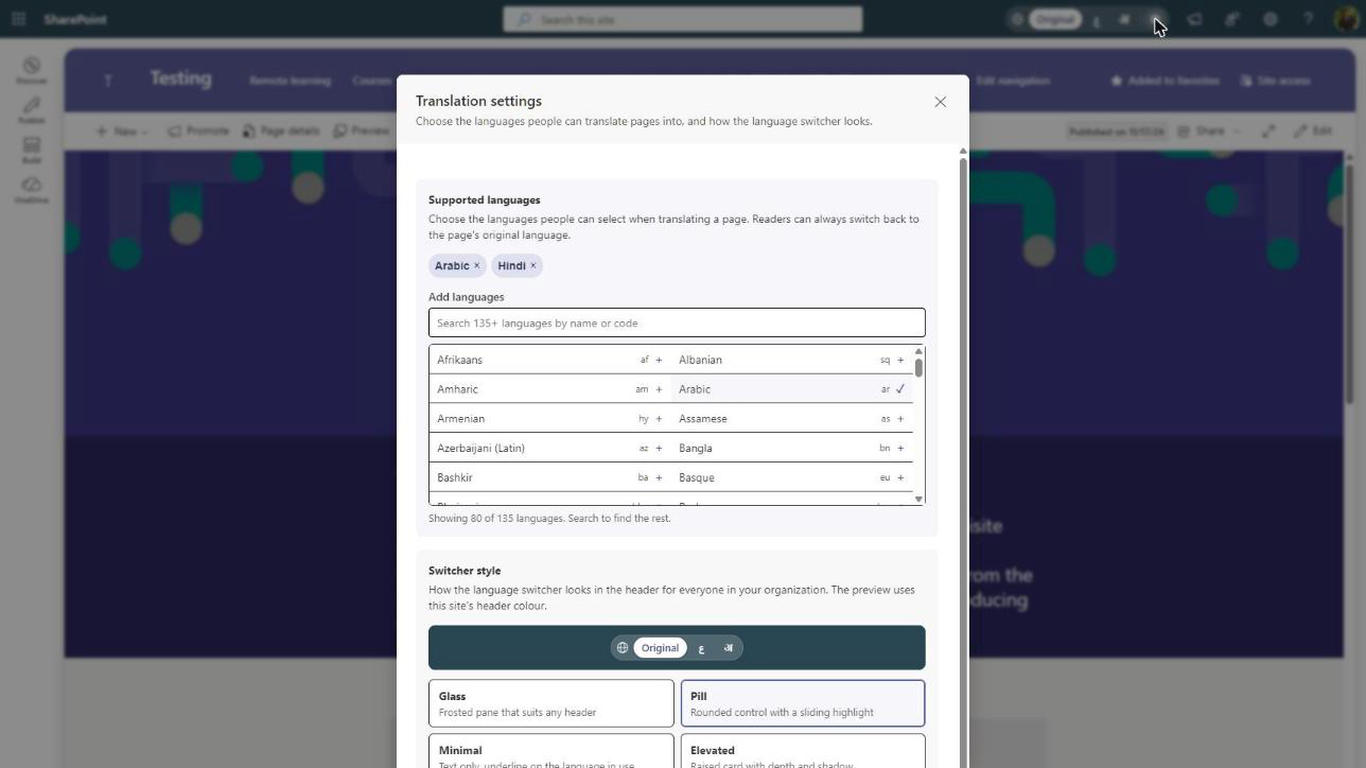
Select the gear icon at the end of the language switcher, add the languages your organisation needs and select Save settings.
Global and SharePoint Administrators see a gear icon at the end of the switcher. Settings apply to the whole organisation.
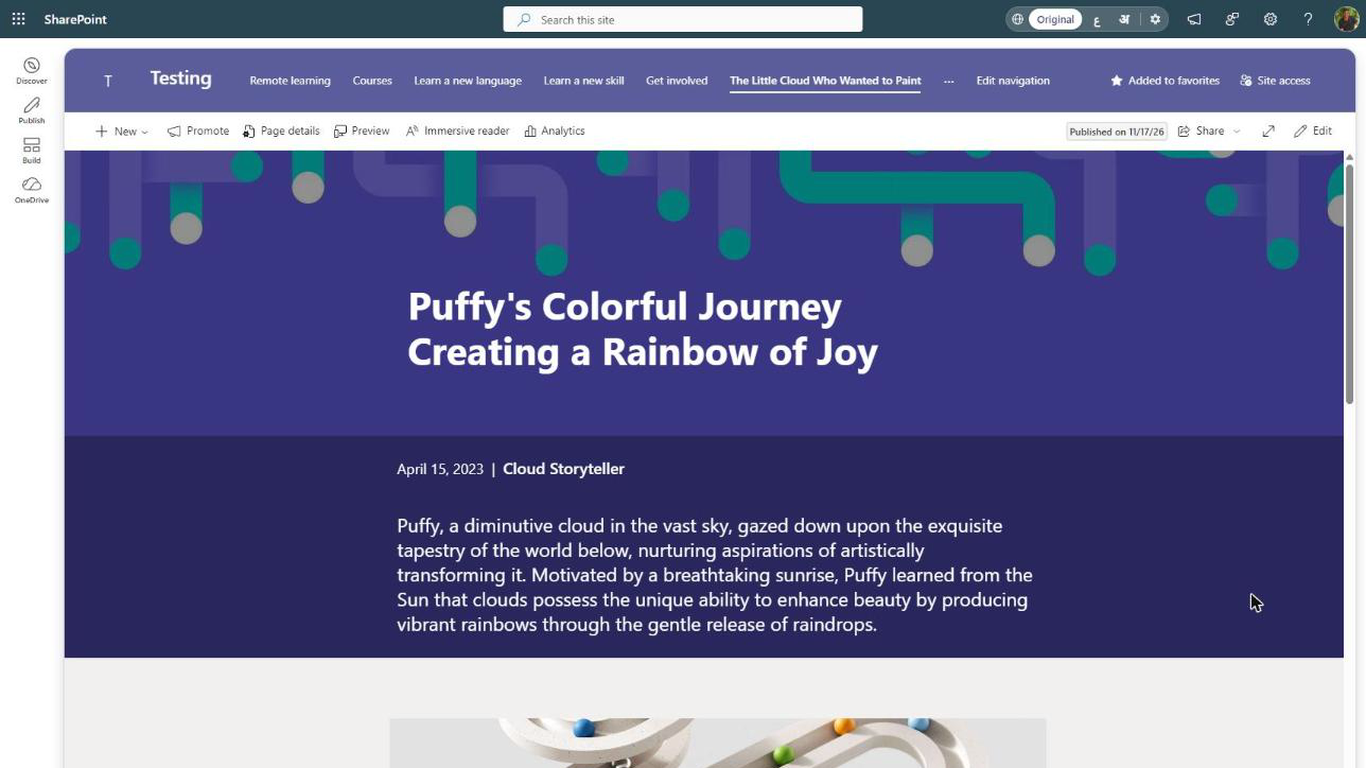
- Open any modern SharePoint page.
- Select a language in the switcher. The page text is translated in place.
- Select Original (or the active language again) to see the page as it was written.
Extra languages are under the + menu. Right-to-left languages switch the page direction automatically, the chosen language is applied to each page you open, and the switcher works with the keyboard.
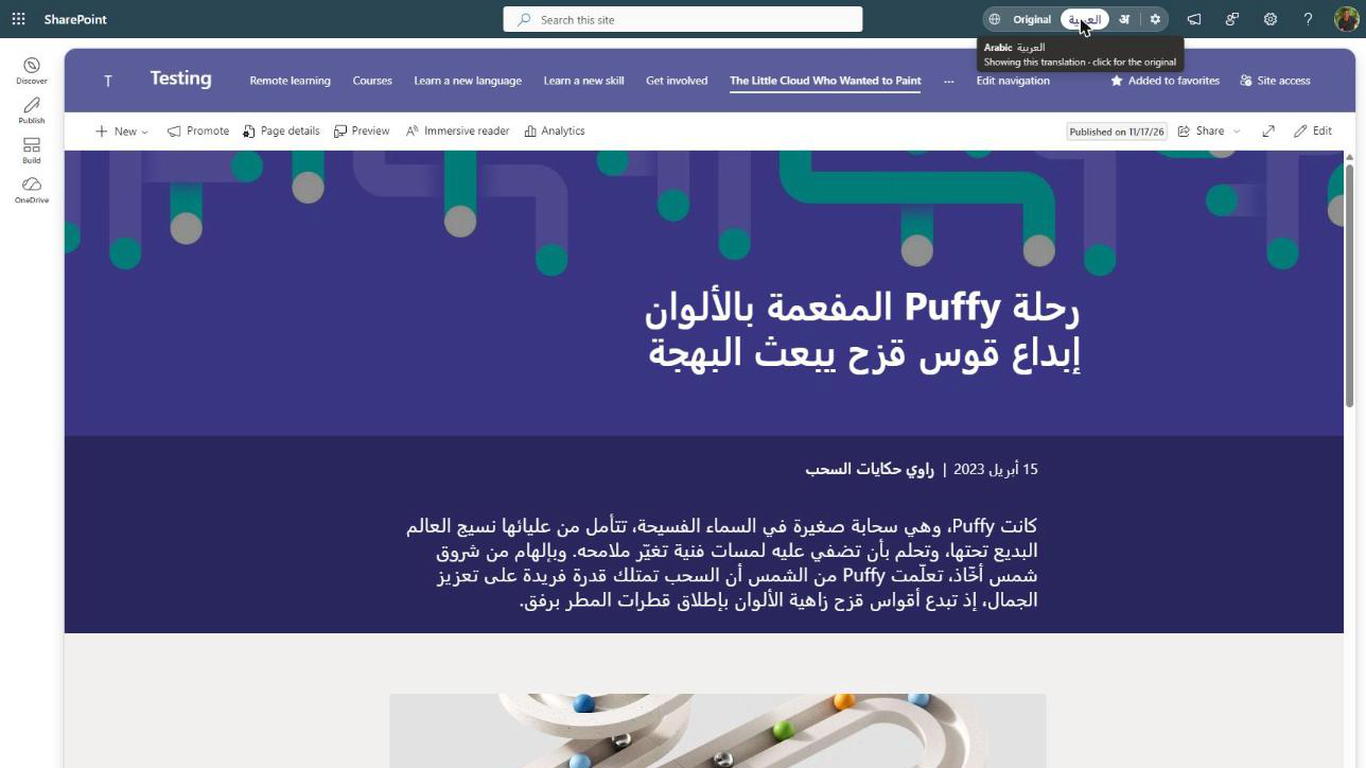
Translations are generated by an AI model. Whenever a page is translated, a notice at the bottom of the page says "Translated by AI into [language] · may contain mistakes".

Report a translation: if a translation is inaccurate, offensive or inappropriate, select Report translation. Your mail app opens a message to support@tealdroid.com with the page address, language and time filled in.
See our privacy notice and terms.
If something needs attention, administrators see a button in the page header instead of the switcher. Readers see nothing until it is fixed.