

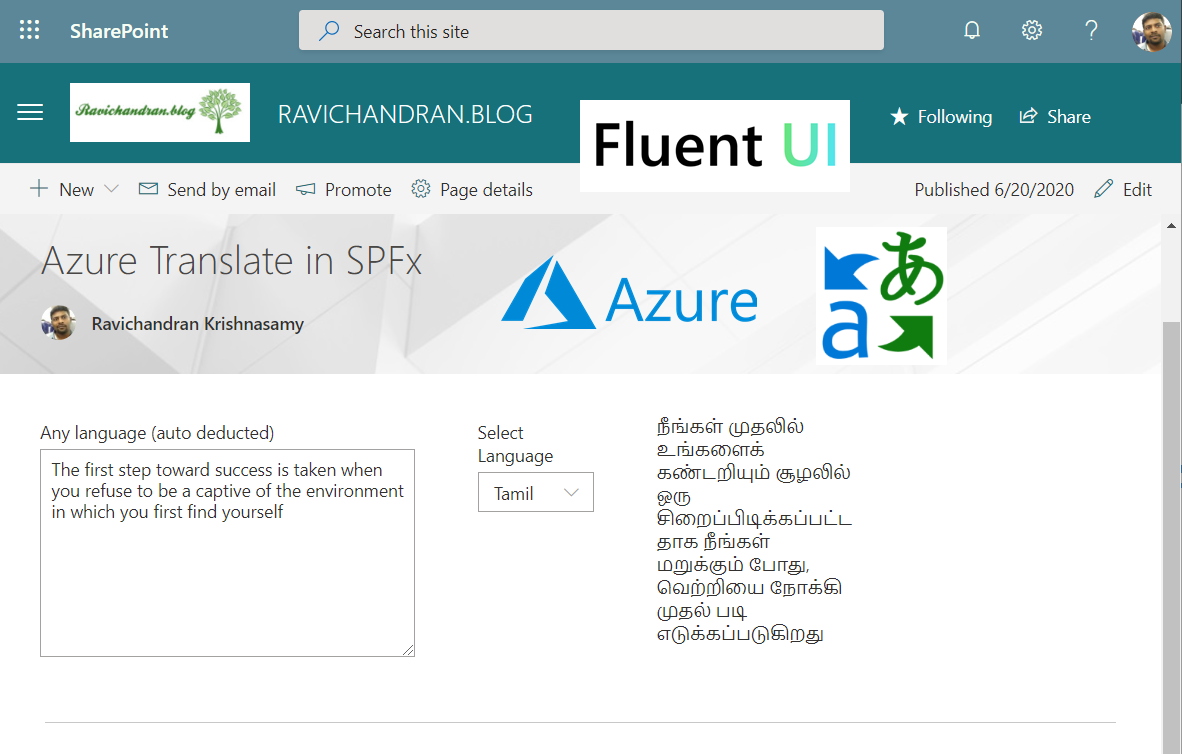
This article explains how to integrate Azure Translator into a SharePoint Framework (SPFx) web part to perform real-time text translation using Microsoft Cognitive Services.
Azure Translator supports translation for more than 60 languages and is ideal for multilingual communication scenarios.
⚙️ Install Dependencies
Install required libraries:
npm install jquery --save
npm install @pnp/sp --save
npm install office-ui-fabric-react --save
🧩 Update the React Component
Open your main React component file (e.g. SpfxAzureTranslator.tsx) and replace the contents with the following code:
import * as React from 'react';
import styles from './SpfxAzureTranslator.module.scss';
import { ISpfxAzureTranslatorProps } from './ISpfxAzureTranslatorProps';
import { ISpfxAzureTranslatorState } from './ISpfxAzureTranslatorState';
import { Stack, IStackProps, IStackStyles } from 'office-ui-fabric-react/lib/Stack';
import { TextField } from 'office-ui-fabric-react/lib/TextField';
import { IDropdownOption, Dropdown } from 'office-ui-fabric-react';
import $ from "jquery";

const stackStyles: Partial<IStackStyles> = { root: { width: 650 } };
const stackTokens = { childrenGap: 50 };
const columnProps: Partial<IStackProps> = { tokens: { childrenGap: 15 }, styles: { root: { width: 300 } } };
const smallcolumnProps: Partial<IStackProps> = { tokens: { childrenGap: 15 }, styles: { root: { width: 180 } } };

export default class SpfxAzureTranslator extends React.Component<ISpfxAzureTranslatorProps, ISpfxAzureTranslatorState> {
  constructor(props: ISpfxAzureTranslatorProps, state: ISpfxAzureTranslatorState) {
    super(props);
    this.state = ({ toLanguage: '', content: '', userinput: '', langarr: [] });
    this._getSupportedLanguages();
  }

  private async _getSupportedLanguages() {
    $.get({
      url: 'https://api.cognitive.microsofttranslator.com/languages?api-version=3.0&scope=translation'
    })
      .done((languages: any): void => {
        let droparr: IDropdownOption[] = [];
        let langobjs = languages.translation;
        for (var key in langobjs) {
          if (langobjs.hasOwnProperty(key)) {
            droparr.push({ key: key, text: langobjs[key].name });
          }
        }
        this.setState({ langarr: droparr });
      })
      .fail((res) => console.log(res));
  }

  private async _translate() {
    $.post({
      url: 'https://YOUR_AZURE_REGION.cognitiveservices.azure.com/sts/v1.0/issueToken',
      headers: {
        'Ocp-Apim-Subscription-Key': 'YOUR_AZURE_TRANSLATOR_KEY',
        'Authorization': 'YOUR_AZURE_REGION.cognitiveservices.azure.com'
      }
    })
      .done((token: any): void => {
        $.post({
          url: 'https://api.cognitive.microsofttranslator.com/translate?api-version=3.0&to=' + this.state.toLanguage,
          headers: {
            'Ocp-Apim-Subscription-Key': 'YOUR_AZURE_TRANSLATOR_KEY',
            'Authorization': 'Bearer ' + token,
            'Content-Type': 'application/json'
          },
          data: JSON.stringify([{ "Text": this.state.userinput }])
        })
          .done((result: any): void => {
            this.setState({ content: result[0].translations[0].text });
          })
          .fail((res) => console.log(res));
      })
      .fail((res) => console.log(res));
  }

  public render(): React.ReactElement<ISpfxAzureTranslatorProps> {
    return (
      <div className={styles.spfxAzureTranslator}>
        <Stack horizontal tokens={stackTokens} styles={stackStyles}>
          <Stack {...columnProps}>
            <TextField
              label="Enter text (auto-detected language)"
              multiline
              autoAdjustHeight
              onChanged={(newtext) => { this.setState({ userinput: newtext }); this._translate(); }}
            />
          </Stack>
          <Stack {...smallcolumnProps}>
            <Dropdown
              placeholder="Select a language"
              label="Select Language"
              options={this.state.langarr}
              onChanged={(value) => { this.setState({ toLanguage: value.key.toString() }); this._translate(); }}
            />
          </Stack>
          <Stack {...columnProps}>
            <label>{this.state.content}</label>
          </Stack>
        </Stack>
      </div>
    );
  }
}
🔑 Get Azure Translator API Key
- Visit the Azure Portal.
- Create a new Cognitive Services resource → Translator.
- Copy the Subscription Key and Region from the resource overview page.
- Replace the placeholders in the code above (
YOUR_AZURE_TRANSLATOR_KEYandYOUR_AZURE_REGION).
🚀 Build and Deploy the Solution
To package and deploy your SPFx solution:
gulp build
gulp bundle --ship
gulp package-solution --ship
Upload the generated .sppkg file to your App Catalog, deploy it, and add the web part to your SharePoint site.
📂 GitHub Sample Project
View full SPFx project on GitHub:Azure Translator in SPFx
✅ Summary
Integrating Azure Translator with SPFx provides real-time multilingual support inside SharePoint.
This approach leverages Microsoft Cognitive Services to automatically detect and translate text, making it ideal for global SharePoint solutions.