

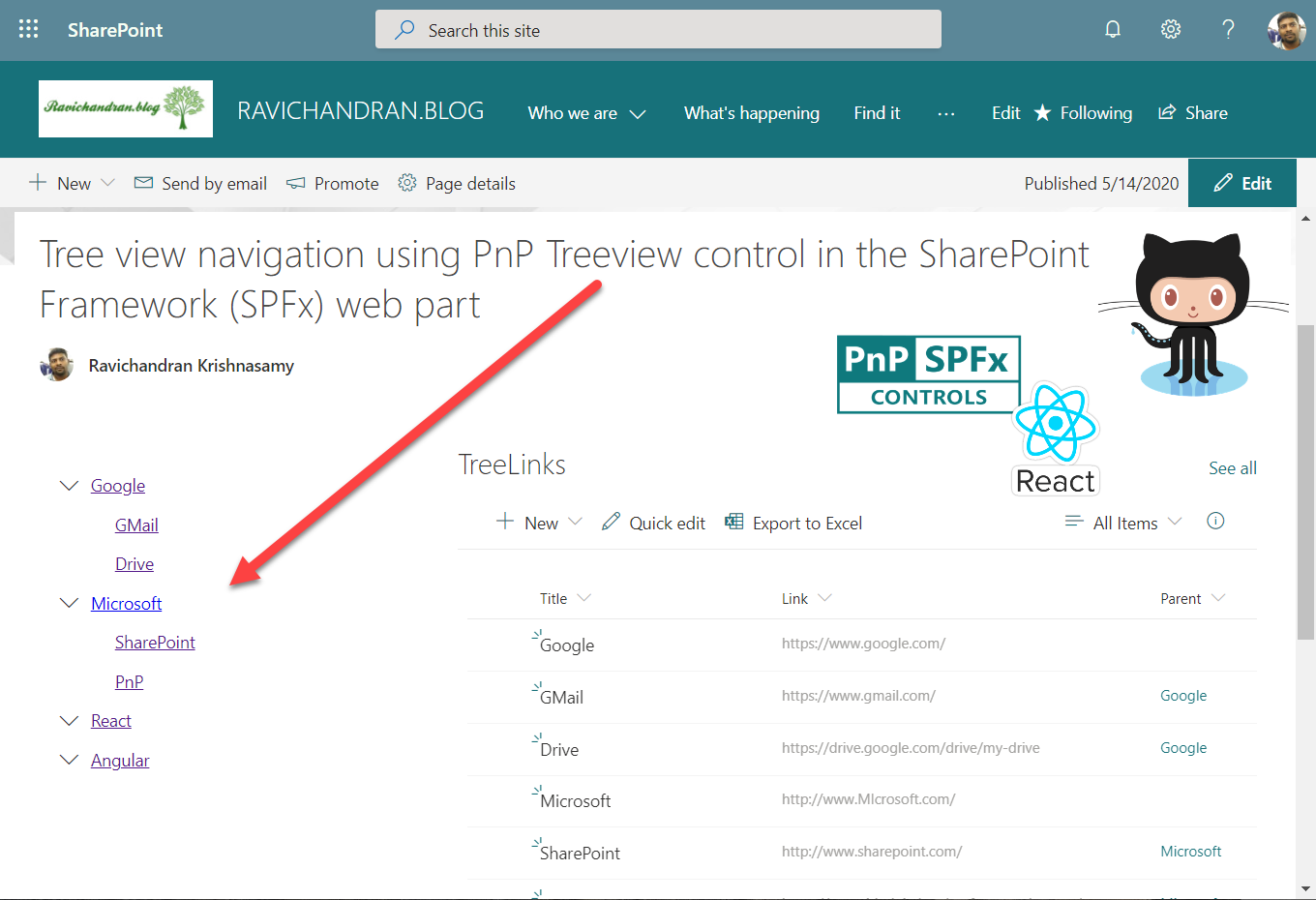
This article provides steps to implement the Tree View Navigation using PnP Treeview Control in the SharePoint Framework (SPFx).
The Treeview control allows you to present a hierarchical view of information where each tree item can have multiple child elements.
This example dynamically loads navigation items from a SharePoint list and displays them as expandable/collapsible nodes.
📦 Install the required packages
npm install @pnp/sp --save
npm install @pnp/spfx-controls-react --save --save-exact
🧩 React Component
import * as React from 'react';
import styles from './SpfxPnpTreeview.module.scss';
import { ISpfxPnpTreeviewProps, ISpfxPnpTreeviewState } from './ISpfxPnpTreeview';
import { TreeView, ITreeItem, TreeViewSelectionMode, TreeItemActionsDisplayMode } from "@pnp/spfx-controls-react/lib/TreeView";

import { SPFI, spfi, SPFx } from "@pnp/sp";
import "@pnp/sp/webs";
import "@pnp/sp/lists";
import "@pnp/sp/items";

export default class SpfxPnpTreeview extends React.Component<ISpfxPnpTreeviewProps, ISpfxPnpTreeviewState> {
  constructor(props: ISpfxPnpTreeviewProps) {
    super(props);
    const sp = spfi().using(SPFx(this.props.context));
    this.state = {
      TreeLinks: []
    }
    this._getLinks(sp);
  }

  private async _getLinks(sp) {
    const allItems: any[] = await sp.web.lists.getByTitle("TreeLinks").items();

    var treearr: ITreeItem[] = [];
    allItems.forEach(function (v, i) {

      if (v["ParentId"] == null) {
        const tree: ITreeItem = {
          key: v.Id,
          label: v["Title"],
          data: v["Link"],
          children: []
        }
        treearr.push(tree);
      }
      else {
        const tree: ITreeItem = {
          key: v.Id,
          label: v["Title"],
          data: v["Link"]
        }
        var treecol: Array<ITreeItem> = treearr.filter(function (value) { return value.key == v["ParentId"] })
        if (treecol.length != 0) {
          treecol[0].children.push(tree);
        }
      }

      console.log(v);
    });
    console.log(treearr);
    this.setState({ TreeLinks: treearr });
  }

  public render(): React.ReactElement<ISpfxPnpTreeviewProps> {
    return (
      <div className={styles.spfxPnpTreeview}>
        <TreeView
          items={this.state.TreeLinks}
          defaultExpanded={false}
          selectionMode={TreeViewSelectionMode.None}
          selectChildrenIfParentSelected={true}
          showCheckboxes={true}
          treeItemActionsDisplayMode={TreeItemActionsDisplayMode.Buttons}
          onSelect={this.onTreeItemSelect}
          onExpandCollapse={this.onTreeItemExpandCollapse}
          onRenderItem={this.renderCustomTreeItem} />
      </div>
    );
  }
  private onTreeItemSelect(items: ITreeItem[]) {
    console.log("Items selected: ", items);
  }

  private onTreeItemExpandCollapse(item: ITreeItem, isExpanded: boolean) {
    console.log((isExpanded ? "Item expanded: " : "Item collapsed: ") + item);
  }

  private renderCustomTreeItem(item: ITreeItem): JSX.Element {
    return (
      <span>
        <a href={item.data} target={'_blank'}>
          {item.label}
        </a>
      </span>
    );
  }
}
🧾 Props / State Interface
import { ITreeItem } from "@pnp/spfx-controls-react/lib/TreeView";

export interface ISpfxPnpTreeviewState {
  TreeLinks: ITreeItem[];
}

export interface ISpfxPnpTreeviewProps {
  description: string;
  context: any | null;
}
🚀 Deploy the solution
Build, bundle, and package the SPFx web part:
gulp build
gulp bundle --ship
gulp package-solution --ship
Upload the generated .sppkg file to your App Catalog and deploy it.
You can now add the Treeview Navigation web part to any SharePoint page.
📂 GitHub Source
View full SPFx project on GitHub:Tree view navigation using PnP Treeview control in the SharePoint Framework (SPFx) web part
✅ Summary
This example demonstrates how to build a dynamic Treeview navigation web part using PnP controls and React.
The control supports expand/collapse actions, checkboxes, and nested nodes with clickable links — ideal for hierarchical navigation menus in modern SharePoint sites.