

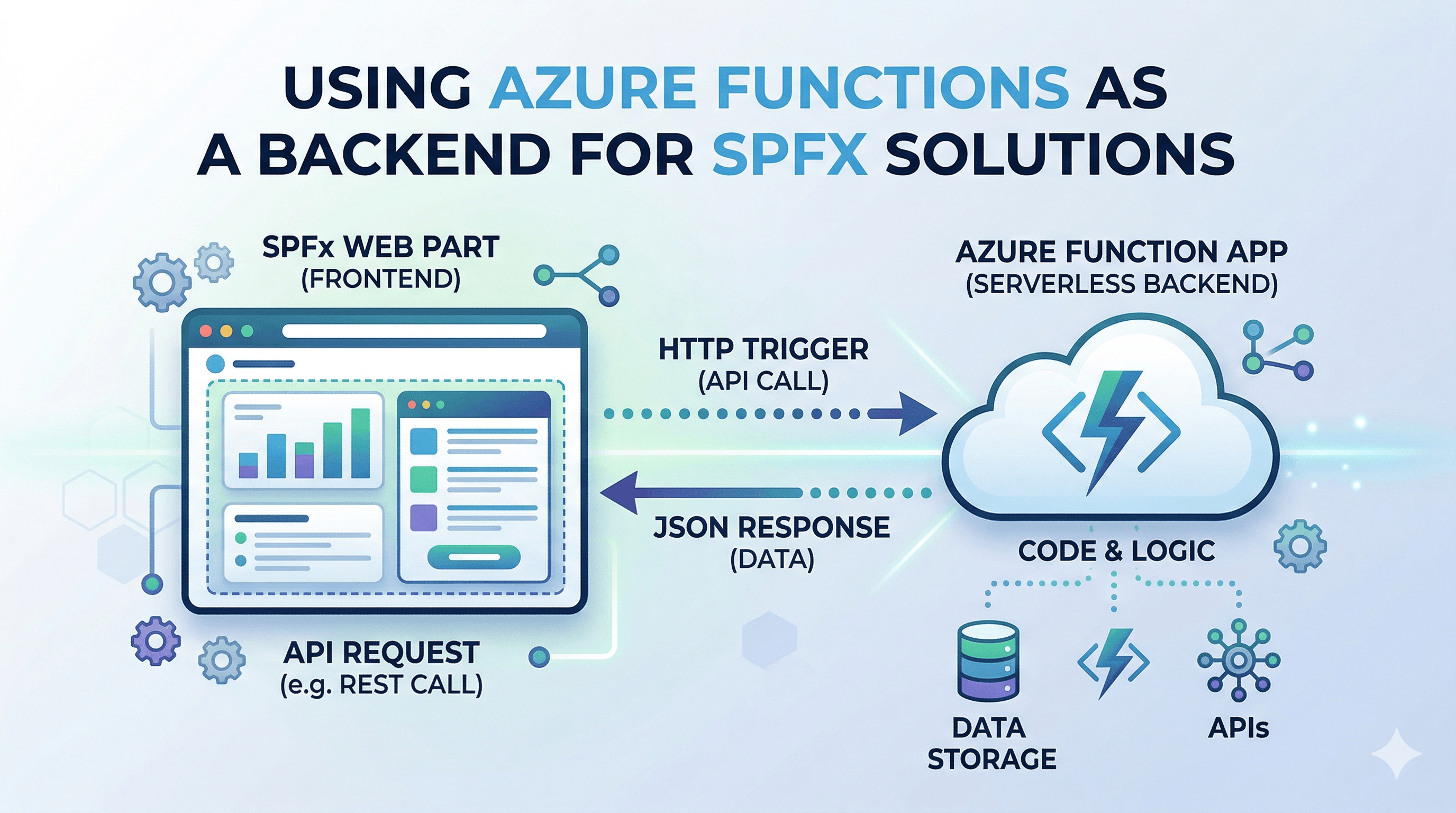
Not every data operation belongs in SharePoint. Complex business logic, external system integrations, database queries, file processing — these belong in a proper backend. Azure Functions is the natural choice for SPFx: serverless, easy to secure with AAD, and deployable in minutes.
The challenge is the authentication and CORS configuration. Getting the token flow right between SPFx and Azure Functions requires a precise sequence of steps — an AAD app registration, Function App auth settings, and the correct AadHttpClientFactory configuration in SPFx. This article covers all of it.
🗺️ The Architecture
SPFx Web Part (browser)
  └── AadHttpClientFactory.getClient(resourceUri)
        └── Acquires AAD token for the Function App
              └── HTTP request with Bearer token
                    └── Azure Function
                          ├── Validates AAD token (built-in auth)
                          ├── Calls external systems / DB / Graph
                          └── Returns JSON response
The SPFx framework handles token acquisition transparently — you specify the resource URI (the Function App's AAD app) and AadHttpClientFactory acquires and caches the token.
⚙️ Step 1 — Create the Azure Function App
# Install Azure Functions Core Tools
npm install -g azure-functions-core-tools@4

# Create a new Function App project
func init spfx-backend --typescript
cd spfx-backend

# Add an HTTP trigger function
func new --name projects --template "HTTP trigger" --authlevel "anonymous"
The authlevel anonymous means Azure Functions does not check an API key — authentication is handled by AAD (configured separately in Step 3). Do not confuse this with "no authentication."
🔧 Step 2 — Build the Function
src/functions/projects.ts
import { app, HttpRequest, HttpResponseInit, InvocationContext } from '@azure/functions';

interface IProject {
  id: string;
  title: string;
  status: string;
  owner: string;
  dueDate: string | null;
}

// In production, this would call a database, Graph API, or other service
const MOCK_PROJECTS: IProject[] = [
  { id: '1', title: 'Project Phoenix', status: 'Active', owner: 'Ravi', dueDate: '2025-03-31' },
  { id: '2', title: 'Project Atlas', status: 'Planning', owner: 'Priya', dueDate: '2025-06-30' }
];

async function projectsHandler(
  request: HttpRequest,
  context: InvocationContext
): Promise<HttpResponseInit> {
  context.log('Projects function triggered');

  const status = request.query.get('status');
  const projects = status
    ? MOCK_PROJECTS.filter(p => p.status === status)
    : MOCK_PROJECTS;

  return {
    status: 200,
    headers: { 'Content-Type': 'application/json' },
    body: JSON.stringify({ projects })
  };
}

app.http('projects', {
  methods: ['GET'],
  authLevel: 'anonymous',
  handler: projectsHandler
});
🔐 Step 3 — Secure with AAD Authentication
Register an AAD app for the Function App:
- Azure Portal → Azure Active Directory → App registrations → New registration
- Name:
SPFx Backend API - Supported account types: Single tenant
- Note the Application ID (client ID) — you need this in SPFx
Set the Application ID URI:
- In the app registration → Expose an API
- Application ID URI:
api://spfx-backend-api(or accept the defaultapi://{app-id}) - Add a scope:
user_impersonationoraccess_as_user
Enable AAD authentication on the Function App:
In Azure Portal → Function App → Authentication → Add identity provider → Microsoft:
- App registration type: Provide existing
- Client ID: your AAD app's Application ID
- Issuer URL:
https://login.microsoftonline.com/{your-tenant-id}/v2.0 - Allowed token audiences:
api://spfx-backend-api(must match the Application ID URI)
Set Unauthenticated requests to: Return HTTP 401 Unauthorized responses
🌐 Step 4 — Configure CORS
SPFx runs from SharePoint Online domains. The Function App must allow requests from those origins.
In Azure Portal → Function App → CORS:
Allowed Origins:
https://*.sharepoint.com
https://*.sharepoint-df.com
https://localhost:4321
Or configure via Azure CLI:
az functionapp cors add \
  --name my-spfx-backend \
  --resource-group my-rg \
  --allowed-origins "https://*.sharepoint.com" "https://localhost:4321"
Also ensure Access-Control-Allow-Credentials: true is set if you need cookies — for token-based auth this is usually not needed.
🧩 Step 5 — Call the Function from SPFx
In config/package-solution.json, declare the permission scope:
{
  "solution": {
    "webApiPermissionRequests": [
      {
        "resource": "api://spfx-backend-api",
        "scope": "user_impersonation"
      }
    ]
  }
}
src/services/BackendService.ts
import { AadHttpClient, HttpClientResponse } from '@microsoft/sp-http';
import { WebPartContext } from '@microsoft/sp-webpart-base';

export interface IProject {
  id: string;
  title: string;
  status: string;
  owner: string;
  dueDate: string | null;
}

export class BackendService {
  private readonly _context: WebPartContext;
  private readonly _functionAppBaseUrl: string;
  private readonly _resourceUri: string;

  constructor(context: WebPartContext, functionAppBaseUrl: string) {
    this._context = context;
    this._functionAppBaseUrl = functionAppBaseUrl;
    // This must EXACTLY match the Application ID URI in the AAD app registration
    this._resourceUri = 'api://spfx-backend-api';
  }

  private async _getClient(): Promise<AadHttpClient> {
    return this._context.aadHttpClientFactory.getClient(this._resourceUri);
  }

  public async getProjects(status?: string): Promise<IProject[]> {
    const client = await this._getClient();
    const url = `${this._functionAppBaseUrl}/api/projects${status ? `?status=${encodeURIComponent(status)}` : ''}`;

    const response: HttpClientResponse = await client.get(
      url,
      AadHttpClient.configurations.v1
    );

    if (!response.ok) {
      const errorText = await response.text();
      throw new Error(`Backend API error ${response.status}: ${errorText}`);
    }

    const data = await response.json();
    return data.projects as IProject[];
  }

  public async createProject(project: Omit<IProject, 'id'>): Promise<IProject> {
    const client = await this._getClient();

    const response: HttpClientResponse = await client.post(
      `${this._functionAppBaseUrl}/api/projects`,
      AadHttpClient.configurations.v1,
      {
        body: JSON.stringify(project),
        headers: { 'Content-Type': 'application/json' }
      }
    );

    if (!response.ok) {
      throw new Error(`Create failed: ${response.status}`);
    }

    return response.json();
  }
}
Initialising in onInit:
protected async onInit(): Promise<void> {
  await super.onInit();
  this._backendService = new BackendService(
    this.context,
    this.properties.functionAppUrl ?? 'https://my-spfx-backend.azurewebsites.net'
  );
}
🚀 Deploy the Function App
# Build
npm run build

# Deploy to Azure
func azure functionapp publish my-spfx-backend --typescript
Or via GitHub Actions — use Azure/functions-action@v1 in your pipeline.
📂 GitHub Source
View full SPFx project on GitHub:SPFx + Azure Function backend starter — auth, CORS, app registration and deployment
✅ Summary
- Register an AAD app for the Function App, set an Application ID URI, and add a scope (
user_impersonationoraccess_as_user). - Enable AAD Authentication on the Function App in the Azure Portal — set unauthenticated requests to return 401.
- The
resourceinwebApiPermissionRequestsand the string passed toaadHttpClientFactory.getClient()must exactly match the Application ID URI — a mismatch causes silent 401 failures. - Configure CORS to allow
*.sharepoint.comorigins — missing CORS is the most common cause of blocked requests in the hosted workbench. - Use
AadHttpClient.configurations.v1as the second argument toclient.get()andclient.post()— this is a required configuration object, not a version number.
Happy coding!