

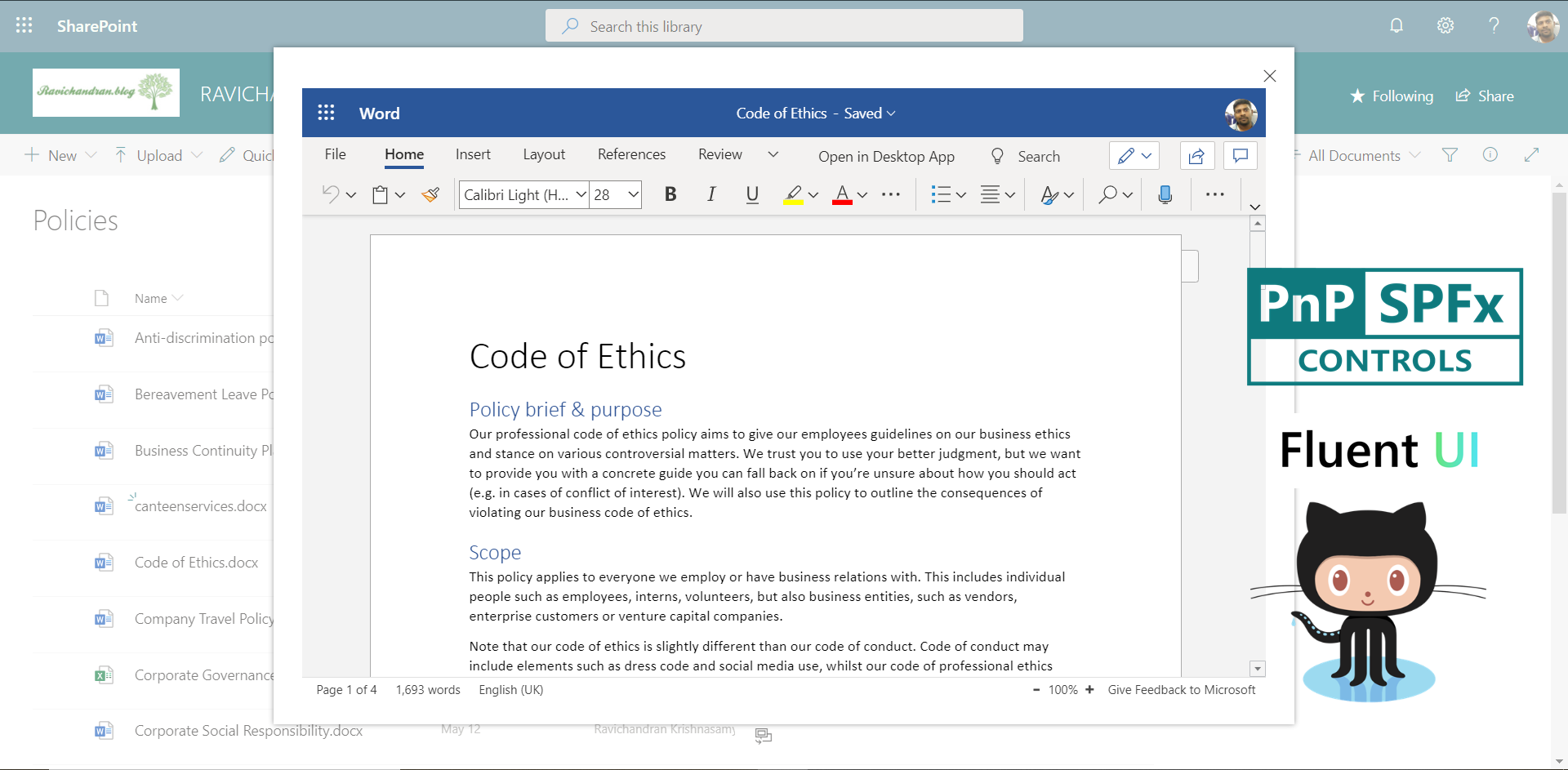
This article provides steps to implement the Popup Documents feature using PnP IFrameDialog Control in the SharePoint Framework (SPFx) Field Customizer Extension.
The PnP IFrameDialog control renders a dialog within an iframe as a modal. In this guide, we display documents in a popup directly from the SharePoint document library.
Create a New Extension Project
Open PowerShell or any terminal and run the following command:
yo @microsoft/sharepoint
When prompted:
- Select Extension.
- Choose Field Customizer.
- Select SharePoint Online only (latest).
- Enter your extension name and description.
- Select React as the framework.
After project creation, open the solution in Visual Studio Code.
Install Required Dependencies
Install the PnP Controls package.
npm install @pnp/spfx-controls-react --save --save-exact
Configure Custom Properties
In your component interface file, add the following code:
export interface ISpFxIFrameDialogExtensionProps {
  Filename: string;
  FileUrl: string;
}

export interface ISpFxIFrameDialogExtensionState {
  showDialog: boolean;
}
Import Dependencies
Add the imports inside your component file.
import * as React from 'react';
import styles from './IFrameDialogExtension.module.scss';
import { override } from '@microsoft/decorators';
import { BaseFieldCustomizer } from '@microsoft/sp-listview-extensibility';
import { IFieldCustomizerCellEventParameters } from '@microsoft/sp-listview-extensibility';
import { IFrameDialog } from '@pnp/spfx-controls-react/lib/IFrameDialog';
import { PrimaryButton } from 'office-ui-fabric-react/lib/Button';
Add the Render Logic
Below is the render method to open the document inside a popup dialog using PnP IFrameDialog.
public renderCell(event: IFieldCustomizerCellEventParameters): void {
  return (
    <div className={styles.cell}>
      <PrimaryButton
        text="View Document"
        onClick={() => this.setState({ showDialog: true })}
      />
      <IFrameDialog
        url={this.state.fileUrl}
        hidden={!this.state.showDialog}
        onDismiss={() => this.setState({ showDialog: false })}
        modalProps={{ isBlocking: false }}
        dialogContentProps={{
          type: 0,
          showCloseButton: true,
        }}
        width="100%"
        height="600px"
      />
    </div>
  );
}
Update the Field Customizer Manifest
Modify your extension manifest file (elements.xml) as shown below:
<Elements xmlns="http://schemas.microsoft.com/sharepoint/">
  <Field
    ID="{e5a3f02b-7e9a-4f3b-96b6-1bbeb7b8b0e2}"
    Name="PnPIFrameDialog"
    StaticName="PnPIFrameDialog"
    DisplayName="PnP IFrameDialog"
    Type="Text"
    Group="Custom Columns"
  />
</Elements>
Include the Field Customizer in Configuration
In the serve.json file, configure the list and field name to test locally.
{
  "$schema": "https://developer.microsoft.com/json-schemas/spfx-build/spfx-serve.schema.json",
  "serveConfigurations": {
    "default": {
      "pageUrl": "https://yourtenant.sharepoint.com/sites/YourSite/Lists/YourList",
      "customActions": {
        "SPFxIFrameDialogExtension": {
          "location": "ClientSideExtension.FieldCustomizer",
          "properties": {
            "sampleText": "Field Customizer Sample"
          }
        }
      }
    }
  }
}
Build and Deploy the Solution
Run the following commands to build, bundle, and package your solution:
gulp build
gulp bundle --ship
gulp package-solution --ship
Upload the .sppkg file to the App Catalog, deploy the solution, and associate the field customizer with your SharePoint list column.
Test the Popup
- Go to your SharePoint list.
- Edit the view and include the customized column.
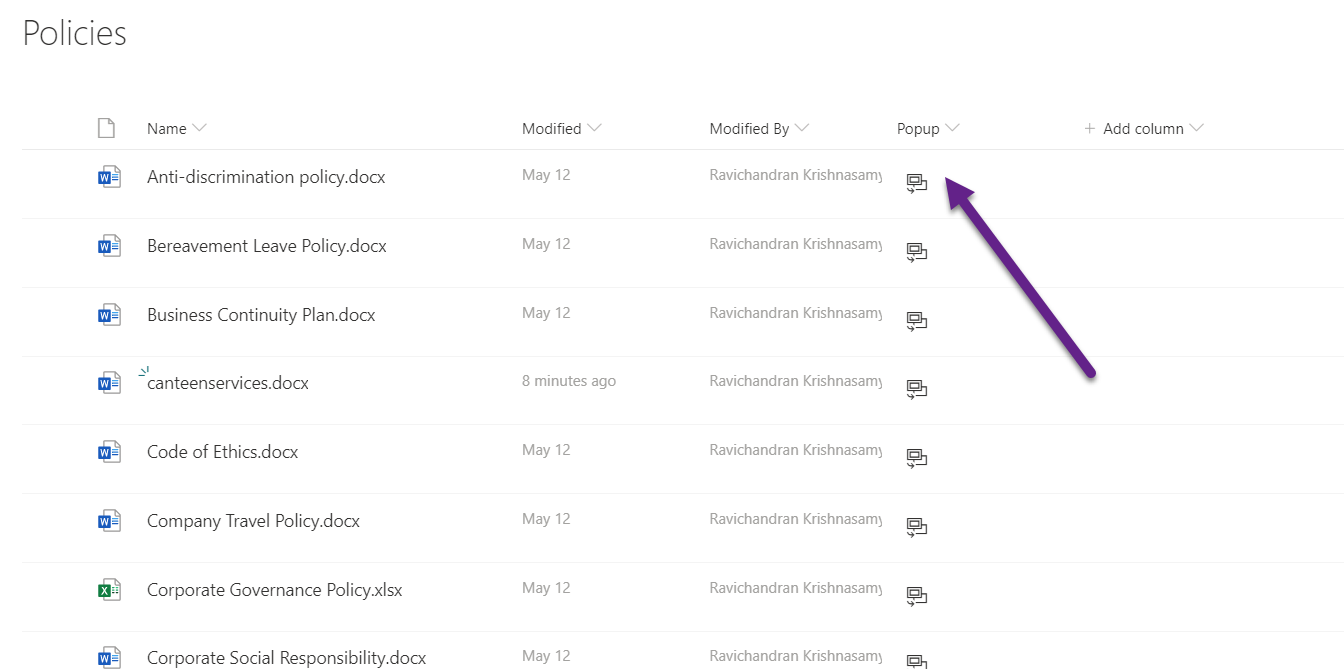
- Click View Document — it should open inside a modal popup.
📂 GitHub Source
View full SPFx project on GitHub:Popup Documents using PnP IFrameDialog Control in SPFx
Summary
- PnP IFrameDialog simplifies document previews within SPFx.
- Field Customizer can integrate Fluent UI buttons for a seamless user experience.
- This technique improves usability by allowing inline document viewing without navigation.
If you have any questions, feel free to comment below.
Happy coding!